
TRIKDIS communicatiemodule + PARADOX alarmcentrale – Korte insta
- 26.02.2024
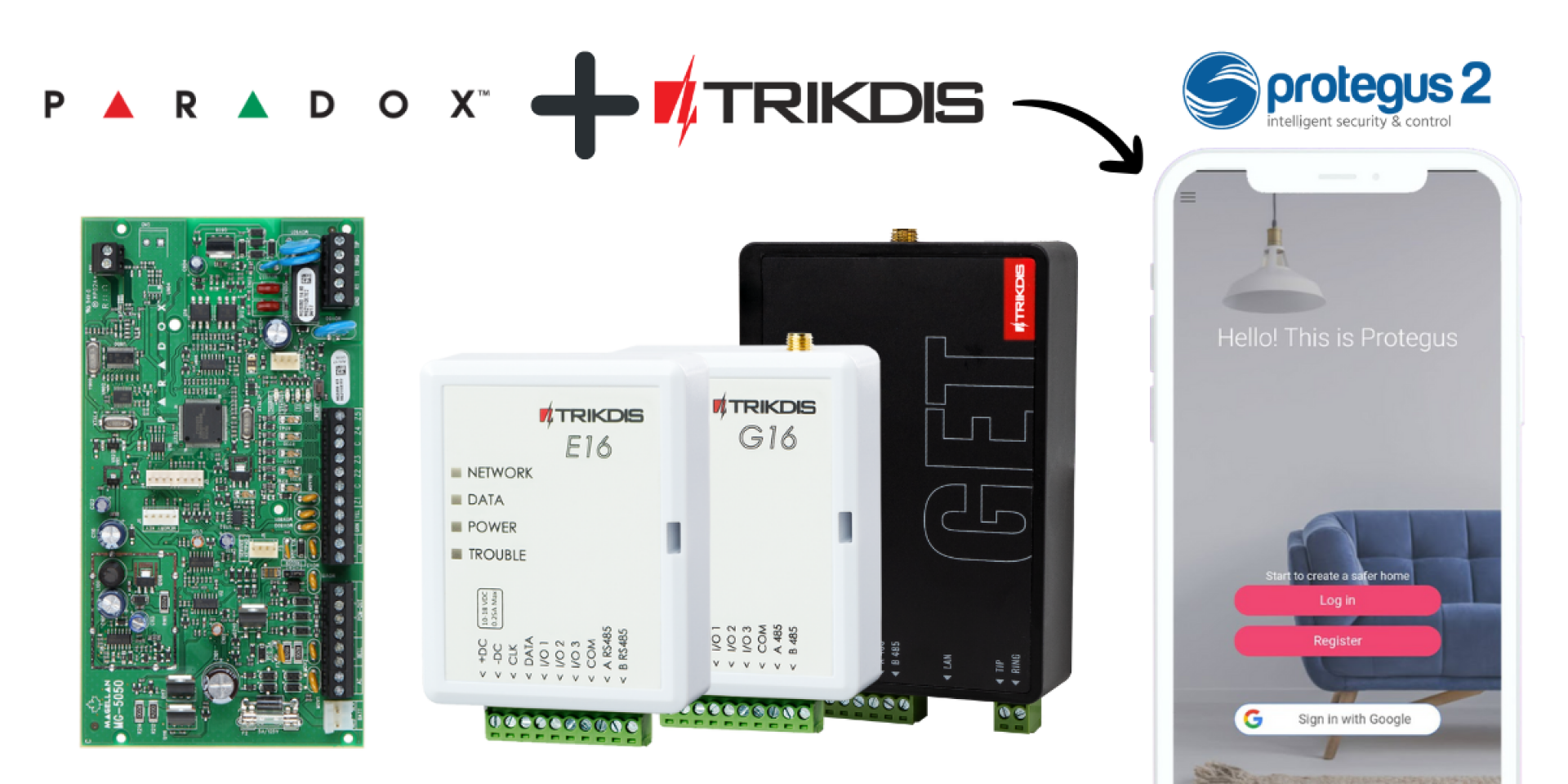
De volgende installatiehandleiding helpt bij het installeren van de intelligente communicatiemodules E16, G16, GT, GT+, GET. De handleiding beschrijft stap voor stap de handelingen die uitgevoerd moeten worden voor compatibele PARADOX alarmcentrales.
De handleiding helpt voornamelijk bij het aanmaken van de alarmcentrale in de gratis gebruikersapp Protegus 2. Hierdoor worden de gebeurtenissen van het alarmsysteem zichtbaar in de app en is het in veel gevallen ook mogelijk het alarm te bedienen (in/uitschakelen).
Let op!
Elektriciteit kan gevaarlijk zijn en persoonlijk letsel of de DOOD veroorzaken, evenals andere financiële verliezen of schade als het niet correct wordt gebruikt of geïnstalleerd.
De installatie omvat werkzaamheden aan elektrische apparatuur en dient te worden uitgevoerd in overeenstemming met de geldende voorschriften.
Voor geldigheid van de garantie dient het apparaat te worden geïnstalleerd door een gekwalificeerde persoon die de installatievoorschriften voor elektrische apparatuur naleeft en de geldende voorschriften voor de veilige bediening van elektrische apparatuur in acht neemt.
Voor welke PARADOX alarmcentrale is deze handleiding geldig?
De beschrijving is alleen van toepassing op de PARADOX alarmcentrales die in de onderstaande tabel staan.
Alarmcentrales aansluitbaar via databus of seriële poort
De Trikdis E16, G16, GT, GT+, GET zijn compatibel met alle hieronder vermelde alarmcentrales . Het belangrijkste voordeel van deze gespecialiseerde Trikdis-communicatiemodules is dat gebeurtenissen via de databus of de seriële poort worden verzonden.
Alarmzentralen, die blau markiert zijn, können direkt (Scharf-/Unscharfschaltung) über die seriële poort oder den Databus gesteuert werden – ganz ohne zusätzliche Verdrahtung.
Centrales gemarkeerd in zwart markiert zijn, ontvangen gebeurtenissen via de databus of de seriële poort , maar vereisen sleutelschakelaarzones en extra bekabeling voor de volledige besturing van het alarmsysteem .

Magellan MG5000, MG5050, MG5050+*, MG5050E
DIGIPLEX EVO48, NE96, EVO96, EVO192*, EVOHD* (*Fw. über 7.50)
ESPRIT E55, 728ULT, 738ULT
Voor directe besturing moet de firmware van de PARADOX-centrales minimaal versie V.4 zijn.
* De seriële poort op de nieuwe gemarkeerde centrales is in de fabriek vergrendeld. De poort moet worden geactiveerd voordat communicatie met een extern apparaat mogelijk is.


TIP-RING
Ondersteunen de speciale Trikdis communicatiemodules de DSC Power Series NEO productfamilie?
NEE! Gebruik de universele communicatiemodules E16T, G16T, GT, GT+, GET met telefoonlijn (TIP RING) aansluiting!
Lees de details: DSC Power Series NEO en Trikdis communicatiemodules: Compatibiliteit en oplossingen


Premier Elite 12, 24, 48, 64, 88, 168


De handleiding bestaat uit de volgende hoofdstukken:
- Bekabeling tussen de PARADOX alarmcentrale en de communicatiemodule
- Programmering van de TRIKDIS communicatiemodule
- Starten van de TRIKDIS communicatiemodule
- Het systeem aanmaken in de Protegus 2 applicatie
Bedrading tussen de PARADOX alarmcentrale en de Trikdis communicatiemodule
Waarschuwing!
Het is verboden om bekabeling uit te voeren op een apparaat dat onder spanning staat. Verwijder vóór het begin van de werkzaamheden de voeding (inclusief back-upbatterijen).
Afneembaar aansluitblok
In veel gevallen is het zeer nuttig dat de terminal block at the bottom of the device can be removed:
- It allows the device to be turned off or restarted with a single motion.
- Easier more convenient wiring.
- The Trikdis device can be brought to the computer for programming with a USB cable.
To connect the PARADOX alarm system control panel and the TRIKDIS communicator, you will need a CRP2 or CRP2B cable. The cable connection should be made as shown in the table below.
| Trikdis communicatiemodule (Zender) | CRP2 kleurmarkering | CRP2B kleurmarkering | Paradox seriële poort diagram markering |
| +DC | Rood | Geel | AUX+ |
| -DC | Zwart | Wit | GND |
| Clk | Geel | Rood | Tx |
| Data | Groen | Zwart | Rx |


Bedrading van de seriële poort van de Paradox alarmcentrale met CRP2-kabel


Bedrading van de seriële poort van de Paradox alarmcentrale met CRP2B-kabel


Programmering van de TRIKDIS communicatiemodule
All Trikdis devices can be programmed using a common software. The software is called TrikdisConfig and can be downloaded from the manufacturer's website.
Installeer het programma na het downloaden. Als bij het starten van TrikdisConfig een nieuwe versie beschikbaar is, download en installeer dan de aanbevolen update.
- Verbind de computer en de TRIKDIS communicatiemodule met een mini-USB-kabel. (Voor de GET is een USB-C-kabel vereist)
- Lees de apparaatinstellingen uit.
- In System Settings > General tab, select the Alarm system control panel type from the dropdown menu that corresponds to the panel connected to the TRIKDIS communicator.
- The direct control (remote arming / disarming) can only be enabled if the selected panel supports this feature (highlighted in red in the list above).
- Paradox-alarmcentrales hoeven alleen voor bediening op afstand te worden geprogrammeerd. Voor het uitlezen van gebeurtenissen is geen programmering nodig. Om directe besturing (in-/uitschakelen op afstand) voor Paradox-alarmcentrales in te schakelen, moet het in de Paradox-centrale opgeslagen PC-programmeerwachtwoord worden ingevoerd in het veld System settings (PC download password) van TrikdisConfig. (Dit veld wordt pas weergegeven nadat directe besturing is ingeschakeld.)
Als u de programmeermodus van de Paradox-alarmcentrale opent, vindt u het wachtwoord- voor de MAGELLAN- en SPECTRA-serie: in sectie 911.
- voor de DIGIPLEX EVO-serie: in sectie 3012.
Let op: het wachtwoord moet 4 tekens lang zijn en mag niet op 0000 worden ingesteld, omdat de centrale de lege fabriekswaarde als 0000 interpreteert.
Na het wijzigen van het PC-wachtwoord moet de Paradox-alarmcentrale opnieuw worden opgestart om de instelling van kracht te laten worden. - Schakel op het tabblad Gebruikersrapportage de verbinding in en kies een numeriek verbindingswachtwoord van zes cijfers.
- Maak de nodige instellingen voor internettoegang
- Ethernet-instellingen zijn alleen nodig als de network device does not allocate an automatic IP address (e.g., router).
- For SIM card devices, the correct APN setting is required for data connection.
- It is recommended to disable the use of PIN codes on a phone before inserting the SIM card into the TRIKDIS device. If you still want to use the PIN code, be sure to enter it.


- write the settings into the device.
- After successful writing, you can unplug the USB cable from the TRIKDIS device.


Starten van de TRIKDIS communicatiemodule
- Voor communicatiemodules met SIM-kaart: plaats de SIM-kaart in het apparaat vóór het opstarten.
- Voor apparaten met Ethernet: u kunt de Ethernet-kabel voor of na het opstarten aansluiten.
- Koppel de USB-kabel los en sluit de verwijderde jumper aan voor het opstarten.
U kunt doorgaan naar het volgende hoofdstuk wanneer het apparaat correct opstart en geen fouten aangeeft.
- De Power-LED brandt groen
- De Trouble-LED knippert niet rood
- De Network-LED brandt groen (geel knipperen is normaal)
- Als de Data-LED niet uitgaat, kan het apparaat een bepaalde gebeurtenis niet verzenden. Dit duidt op een internet-/dataverbindingsfout.
Het systeem aanmaken in de Protegus 2-applicatie
- Download de Protegus 2-applicatie op uw telefoon of open deze in een browser
- Register an account if you haven\\\'t already.
- Log in op uw account.
- Klik op de hoofdpagina op de "+"-knop om een systeem aan te maken
- Enter the unique identifier of the TRIKDIS device (you can also scan the barcode or QR code with your phone\\\'s camera), which you can find
- On the sticker of the device
- On the device\\\'s cardboard box
- In the bottom left corner of TrikdisConfig (selectable and copyable format)
- Enter the system name and select a time zone
- Your system is created, you can still name the partitions and zones at the next step, but you can do this later anytime.
- In the last step, your system\\\'s home screen will appear. Wait until the yellow stripe disappears and your system is ready.


Tags:
Gerelateerde artikelen

Directe bediening van de alarmcentrale via databus of seriële po
- 19.10.2018
Directe Trikdis-besturing via databus of seriële poort: voordelen, compatibiliteit en beschikbare functies.
Meer lezen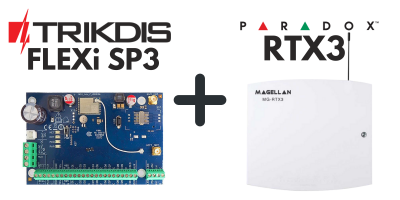
FLEXi SP3 + draadloze uitbreidingsmodule Paradox RTX3
- 21.04.2022
FLEXi SP3 is compatibel met de draadloze uitbreidingsmodule Paradox RTX3 – eenvoudige hybride installatie.
Meer lezen
Seriële poort ontgrendelen op Paradox alarmcentrales
- 25.01.2023
Handleiding voor het ontgrendelen van de seriële poort op PARADOX alarmcentrales van de „+"-serie voor gebruik met Trikdis-communicatiemodules.
Meer lezen
DSC Power Series NEO en Trikdis communicatiemodules: compatibili
- 01.03.2025
Zijn DSC Power Series NEO systemen compatibel met de speciale communicatiemodules van Trikdis? Oplossingen en alternatieven.
Meer lezenGerelateerde producten
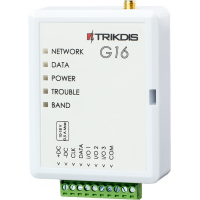
Trikdis G16 2G GSM communicatiemodule
De Trikdis G16 2G GSM communicatiemodule werkt samen met Paradox, DSC en andere alarmcentrales via d..
€128,90 Excl. btw: €104,80
Trikdis G16T 2G GSM communicatiemodule (TIP-RING)
slim alarmsysteem, slim huis, slimme communicator, GSM-communicator, IP-communicator
€128,90 Excl. btw: €104,80
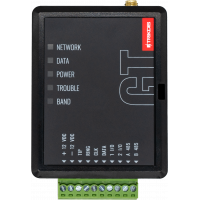
Trikdis GT 4G communicatiemodule
slim alarmsysteem, slimme communicator, GSM-communicator
€174,90 Excl. btw: €142,20
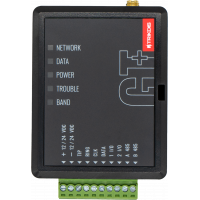
Trikdis GT+ 4G communicatiemodule
slim alarmsysteem, slimme communicator, GSM-communicator
€174,90 Excl. btw: €142,20
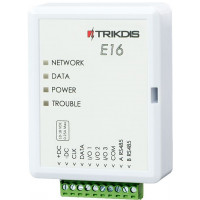
Trikdis E16 Ethernet communicatiemodule - IP module
De Trikdis E16 Ethernet communicatiemodule kan samenwerken met Paradox, DSC en andere fabrikanten va..
€82,90 Excl. btw: €67,40
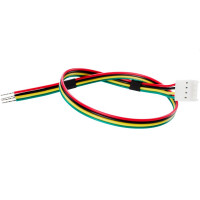
Trikdis CRP2 seriële poort aansluitkabel voor Paradox alarmpanelen
verbindingskabel, seriële poort, Paradox
€6,90 Excl. btw: €5,61
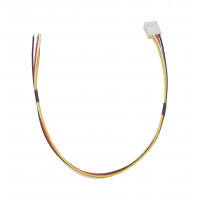
CRP2B seriële poort aansluitkabel voor Paradox alarmpanelen
verbindingskabel, seriële poort, Paradox
€4,90 Excl. btw: €3,98